
How to Check Whether Your Dealer Is Connected to a Device?
Answer:
When a user or bridge club has more than two dealers, if the correct dealer does not connect immediately, it can sometimes require some attention.
This is because on another device than the intended one, a tablet or phone with our app installed and started- the Bluetooth connection from a non-intended device may accidentally connect to the dealer without you noticing it. This is not an error.
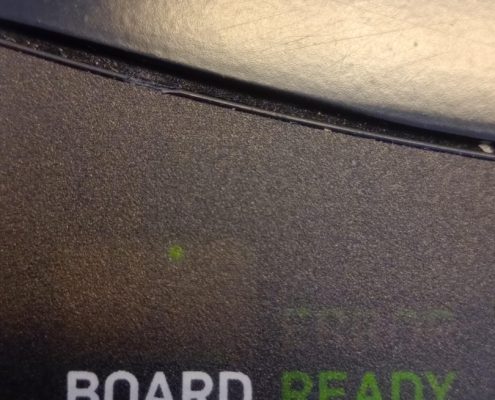
To confirm that a dealer is connected to a (different) device, simply check the dealer’s display (the two green digits) for a slow-flashing green dot between the two digits – not like 0.0 but 0.0 – indicating that a dealer is connected to the device.
- Go to the Bridge+More app’s Main Menu.
- Select Dealer Connection.
- Connect the dealer to the tablet.
- The connection process should take only a few seconds.
- If a dealer is available, its details will appear after you have clicked the Search button or simply select the number if shown.
- Once selected, the connection between the dealer and the tablet will be established after a short countdown. As illustrated in the picture, two columns of text confirm the connection.
- A click on the dealer illustration in the upper right corner will start a flashing of N S E W – handy if you have many dealers.


How to check if the Bridge+More dealer is connected?
To confirm that the dealer is connected, watch the display for a few seconds until you see the green dot.
If the dealer is connected to the wrong device, turn off the dealer and then select Search in the tablet’s menu. Turn the dealer back on and select it from the list to connect it to the desired tablet.
If the tablet is connected to the wrong device, simply click the Disconnect button in the Dealer Connection menu on our tablet or, alternatively, turn off the dealer and then select Search in the tablet’smenu. Turn the dealer back on and select it from the list to connect it to the desired tablet.
