
Question: How to manually do a thorough calibration of the bridge dealer with 1 * 52 cards? (Advanced)
Answer:
- Why might you need a calibration? The cards can have dirt or wear marks. You can recalibrate to take the changes into consideration.
- When do you need a card calibration?
-
- If you experience an increasing number of cards, read errors (89) or for example, if the dealer reads red cards better than blue cards.
-
- We advise doing a 4-card calibration. If codes 89 persist after a successful 4-card calibration (code 57), then it will be necessary to perform a 52-card calibration with only one deck.
Fast and Easy – Please notice you can do a fast 4 card calibration (on each deck) or do a thorough calibration of the bridge dealer’s UV readers with 1* 52 cards. In most cases, 4 cards calibration would be adequate – see more here.
Technical information: The dealer handles two different sets of calibration settings to handle any differences between your two decks of cards when you do two 4 card calibrations (you can decide just to do one deck) and the dealer defines a calibration settings interval when you do a 1*52 card calibration.
Before you start a calibration, please check the following:
- Control that the Bridge+More dealer does not have dirt in the UV readers.
- Blow gently to remove any dirt or use a rubber blower.
- Do not use a sharp device or anything that can harm the UV readers or transmitters. You can read more here –here – How to see if the dealer is charging?)
To do a thorough calibration of the Bridge+More dealer with 1 * 52 cards please follow the instructions below:
- Connect the tablet and Bridge+More dealer as usual,
- Make sure the Bridge+More dealer has more than 30% battery, else it needs to be charged first. If you need to know how to see the battery level, you can see the illustration below – this dealer shows a 100% battery level. There are several other ways to see battery level – see here – How to see if the dealer is charging?
And when ready:
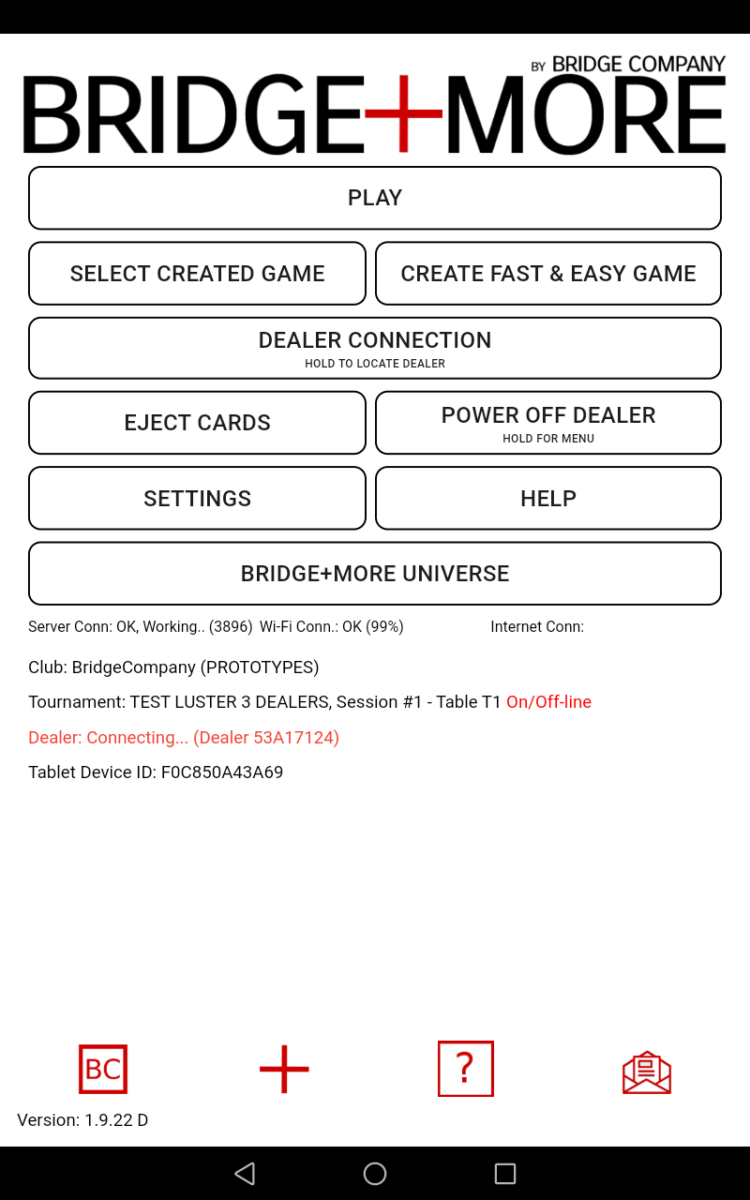
3. Go to the Main Menu of the app and click “Dealer Connection”. Once there, you will see all the information related to the dealer, including the last date and time a successful calibration was done.
4. Click the “Dealer menu”, button next to the current dealer’s name, “B+M XXXX” to open the “Dealer Menu”.
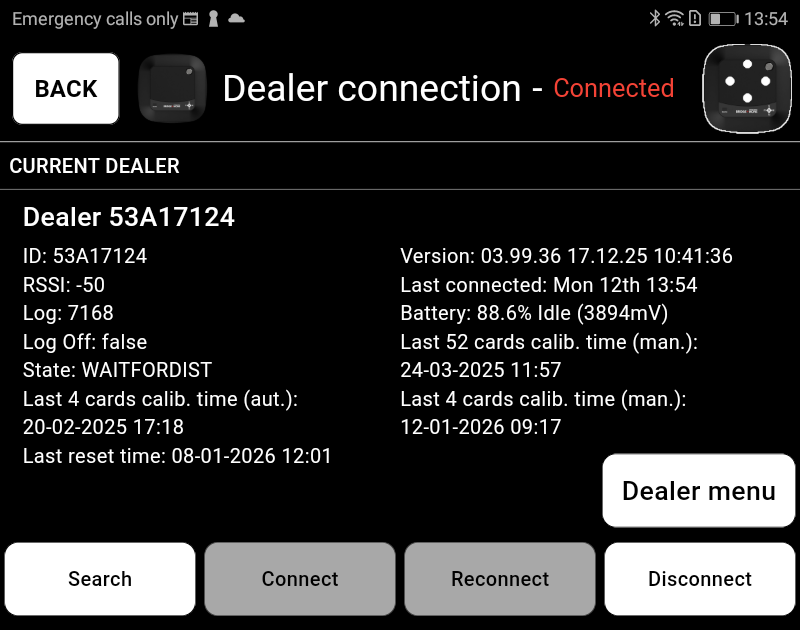
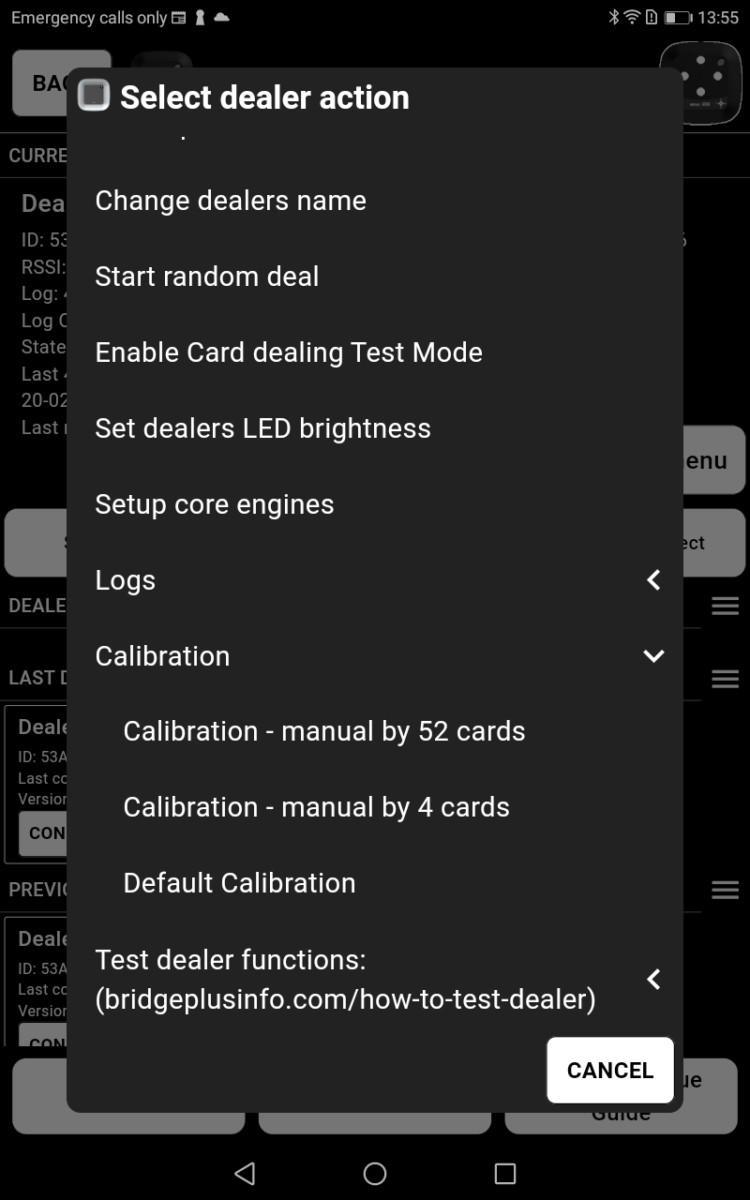
5 . Select “Calibration” – Calibration is one of the last menu items.
Please arrange 1 deck of cards like shown below, starting from the bottom:

Card order: Spades Ace to King, Clubs Ace to King, Hearts Ace to King, Diamonds Ace to King. Please make sure that spades are on the bottom, and diamonds are at the top.
❗ Additional information: You can use the Test deal function in the same menu to sort in colors and take the cards in the following order N W S E and sort each color Ace to King.
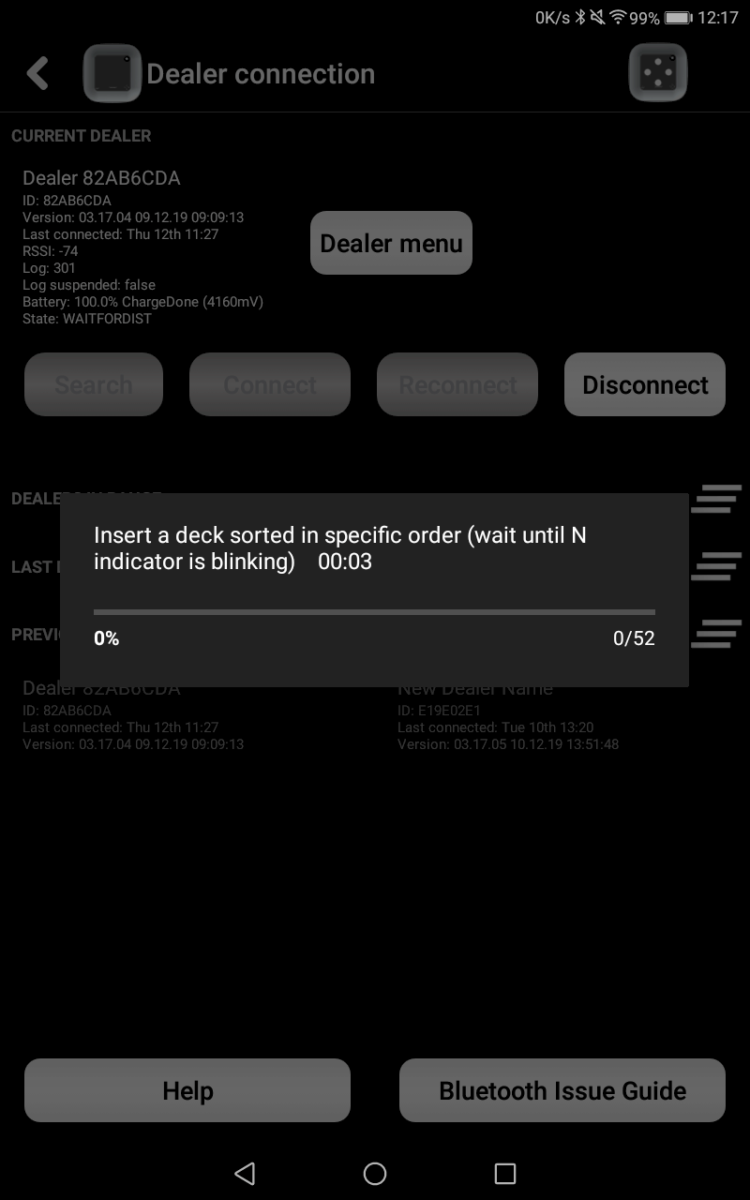
6. After you have clicked “Calibration” , wait until the N in the display is blinking, then insert the correctly sorted cards, close the dealer’s lid, and let the dealer deal the deck.
**If the dealer does not start, open the lid again and close the lid again.**
The cards do not have to be new, but if the cards are very used or dirty, you might get an Info Code 56 – see below
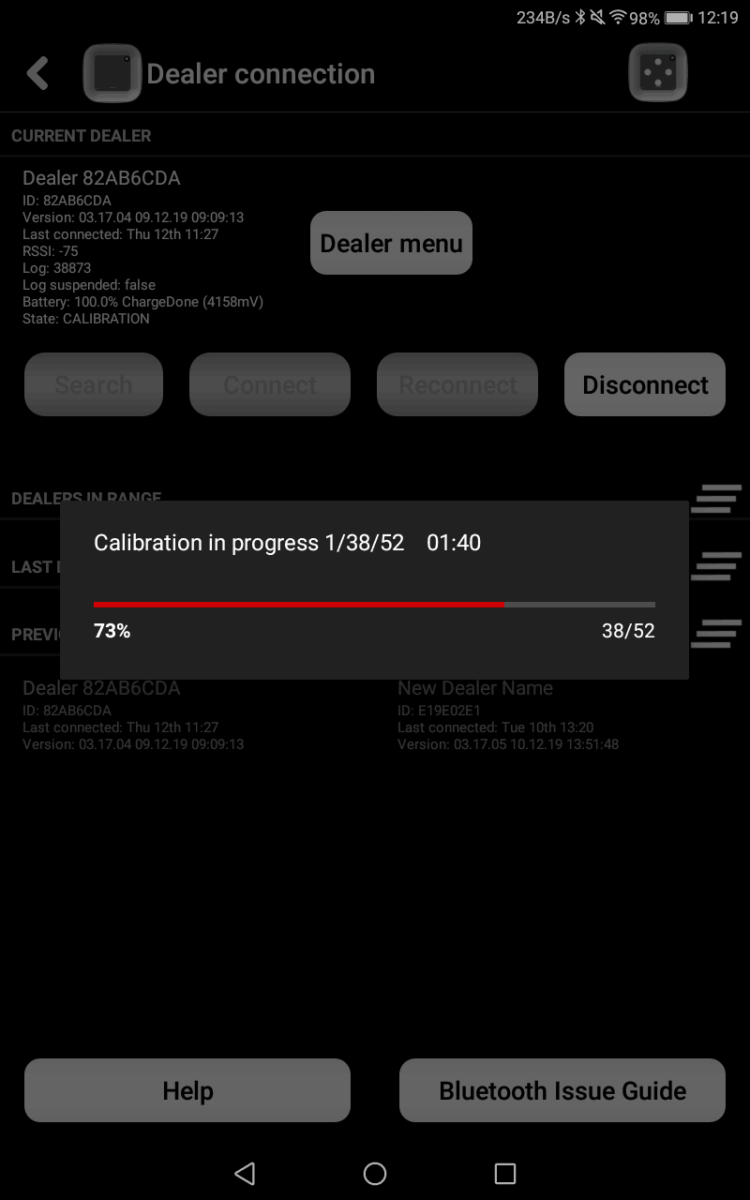
❗ During the calibration, you will see on the dealer that it counts from 01 to 52.
After dealing all 52 cards, the dealer and the tablet will use the following information codes (Info codes)
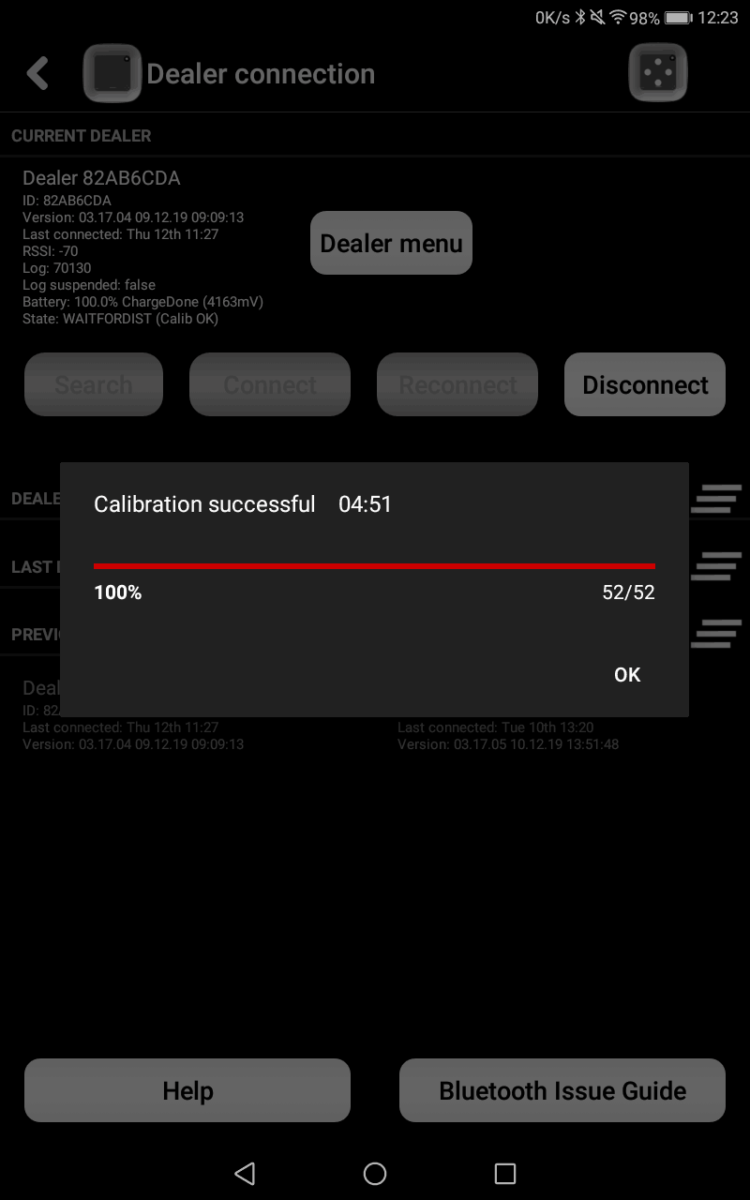
- If calibration has been successful, the dealer will return Info Code 53 0r 57 as illustrated below.
- If calibration has NOT been successful, the dealer will return Info Code 54 or 56 – Notice Info Code 54 OR 56 can also be due to the wrong order of cards and/or colors. Simply try again, maybe try other cards, but please check the card order first.
After the dealer has finished each deck the cards are ejected.
Related posts:
How to test the dealer – Bridge Dealer UV LED tests
How to test the dealer – Bridge dealer Light filter test
How to test the dealer – Dealer test of the card gap
The following screen dumps show the order and information – you can stop a calibration by using the triangled icon at the bottom of the screen.